Using WURFL in ASP.NET Applications (C#)


An application that uses WURFL is simply an application that needs to check a number of effective browser capabilities in order to decide what to serve. The WURFL database contains information about a huge number of devices and mobile browsers. This information essentially consists in a list of over 500 capabilities. Each device, uniquely identified by its user-agent string (UAS), falls into a group and inherits the capabilities defined for the group, plus the delta of base capabilities that make it unique.
Programming a WURFL-based application is therefore a fairly easy task. All you need to do is load WURFL data in memory and query for specific capabilities you're interested in for the currently requesting browser/device. Let's step into some more details for an ASP.NET Web Forms application (If you're using ASP.NET MVC, don't panic - it's exactly the same.)

Required Binaries

To enable WURFL on your application you need to download the WURFL binaries and data. Binaries include wurfl.dll and the wurfl.aspnet.extensions. The wurfl.dll file must be added as a reference to any WURFL project. The wurfl.aspnet.extensions file must be referenced only in ASP.NET projects where you plan to use WURFL.

Loading WURFL Data

WURFL data changes over time but it's not certainly real time data. So you can blissfully load all of it at the startup of the application and keep it cached for as long as you feel comfortable. When an update is released, you just replace the data and restart the application. Both programming and deployment aspects of the operation are under your total control.
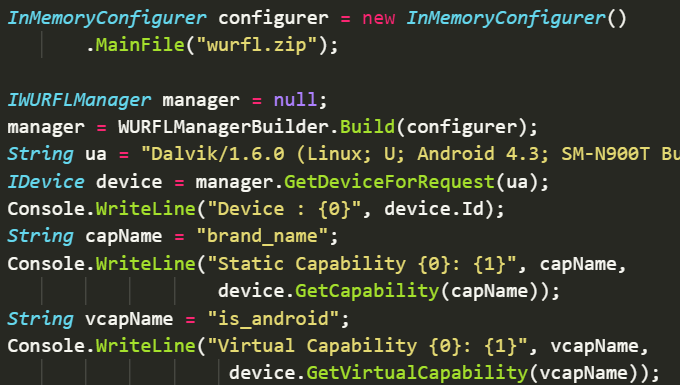
In an ASP.NET application, the Application_Start method is the place where you perform all one-off initialization work. Here's how you can instruct the method to load and cache WURFL data.

 
public class Global : HttpApplication
{
   public const String WurflManagerCacheKey = "__WurflManager";
   public const String WurflDataFilePath = "~/App_Data/wurfl.zip";
   public const String WurflPatchFilePath = "~/App_Data/web_browsers_patch.xml";
   private void Application_Start(Object sender, EventArgs e)
   {
       var wurflDataFile = HttpContext.Current.Server.MapPath(WurflDataFilePath);
       var wurflPatchFile = HttpContext.Current.Server.MapPath(WurflPatchFilePath);
       var configurer = new InMemoryConfigurer()
                .MainFile(wurflDataFile)
                .PatchFile(wurflPatchFile);
       var manager = WURFLManagerBuilder.Build(configurer);
       HttpContext.Current.Cache[WurflManagerCacheKey] = manager;
   }
}

You can specify multiple patch files by simply calling the PatchFile method multiple times in the same chained expression.

 
var configurer = new InMemoryConfigurer()
                .MainFile(wurflDataFile)
                .PatchFile(yourWurflPatchFile1)
                .PatchFile(yourWurflPatchFile2);

Important note: starting with version 2.3.1 of WURFL, the Web Patch has been added to the wurfl.xml file. So there are no system patch files to add to the list. Users can of course add their own, if they wish.

As you can see, both file names and cache details are under your control. You might want to maintain a copy of the WURFL data on your Web server. The API doesn't currently support reading from other than local files. You can also specify the WURFL data files in the web.config file. In this case, you replace the call to InMemoryConfigurer with ApplicationConfigurer.

 
var configurer = new ApplicationConfigurer();
The web.config section has to look like below:
 
<wurfl>
   <mainFile path="~/..." />
   <patches>
     <patch path="~/..." />
     :
  </patches>
</wurfl>

Note that the <wurfl> section is a user-defined section and needs be registered before use with the .NET infrastructure. For this reason, you also need to add the following at the top of the web.config file:

 
<configuration>
  <configSections>
     <section name="wurfl" type="WURFL.Aspnet.Extensions.Config.WURFLConfigurationSection,Wurfl.Aspnet.Extensions, Version=1.4.0.0, Culture=neutral" />
  </configSections>
  :
</configuration>

You can use the ASP.NET tilde (~) operator to reference the root of your site when specifying file paths. Note that the ApplicationConfigurer class is defined in the wurfl.aspnet.extensions assembly so if you plan to use configuration files in, say, a console application that does batch processing, then you need to reference the wurfl.aspnet.extensions assembly as well.

Caching WURFL Data

In Web applications, it is always a good habit to cache any large and constant block of data; WURFL data is no exception. To cache data in ASP.NET applications, you typically use the native Cache object. WURFL doesn't mandate any special guideline as far as caching is concerned. You are completely free of determining the name of the key used to retrieve the data. Likewise, it is up to you to implement caching and expiration policies. For example, you can make cached WURFL data dependent on the timestamp of the wurfl.zip file and/or patch files. In this way, cached data is automatically cleared when you replace the WURFL file.
For more information on using cache dependencies in ASP.NET, have a look at "Programming ASP.NET 4", Dino Esposito, Microsoft Press.
To be precise, you never cache raw data but you cache, instead, a reference to the object that owns that data. The object you cache is the WURFL manager. This is also the object you query for capabilities. Here's how you retrieve the cached instance of the manager.

 
var wurflManager = HttpContext.Current.Cache[WurflManagerCacheKey] as IWURFLManager;

It goes without saying that you should check the instance for nullness as there's no guarantee that the reference is still there when you try to access it. A good practice is checking whether the instance is null and reload it as appropriate. Another alternative is not using the (otherwise recommended) Cache object, but stick to the Application object which still keeps its content global to all sessions but doesn't implement any scavenging policies.

Querying for Capabilities

Once you hold a WURFL Manager object in your hands, you're pretty much done. A WURFL manager is an object that implements the IWURFLManager interface, as defined below.

 
public interface IWURFLManager
{
    IDevice GetDeviceForRequest(WURFLRequest wurflRequest);
    IDevice GetDeviceForRequest(WURFLRequest wurflRequest, MatchMode matchMode);
    IDevice GetDeviceForRequest(String userAgent);
    IDevice GetDeviceForRequest(String userAgent, MatchMode matchMode);
    IDevice GetDeviceById(String deviceId);
    IWurflInfo GetWurflInfo();
    MatchMode GetMatchMode();
}

The WURFLManager class offers a few methods for you to gain access to the in-memory representation of the detected device model. You can query for a device in a variety of ways: passing the user agent string, the device ID, or a WURFL specific request object. The WURFL specific request object - the class WURFLRequest - is merely an aggregate of data that includes the user agent string and profile.
All of the methods on the WURFL manager class return an IDevice object which represents the matched device model. The interface has the following structure:

 
public interface IDevice
{
   string Id { get; }
   string UserAgent { get; }
   string GetCapability(string name);
   IDictionary<string, string> GetCapabilities();
}

public interface IDevice
{
   String Id { get; }
   String UserAgent { get; }
   String NormalizedUserAgent { get; }
   String GetCapability(String name);
   IDictionary<String, String> GetCapabilities();
   IDevice GetDeviceRoot();
   IDevice GetFallbackDevice();
   String GetMatcher();
   String GetMethod();
}

You can check the value of a specific capability through the following code:

 var is_tablet = device.GetCapability("is_tablet");

If you call the GetCapabilities method you get a dictionary of name/value pairs. The value associated with a capability is always expressed as a string even when it logically represents a number or a Boolean.
Armed with capabilities - WURFL supports more than 500 different capabilities - you are ready to apply the multi-serving pattern to your next ASP.NET mobile Web site.

Match Mode: High-Performance (HP) vs. High-Accuracy (HA)

With version 1.4, the WURFL API introduces a new concept-the match mode. This is an additional parameter you can use to drive the behavior of the API. In High-Performance mode (the default), the API will adopt heuristics to detect the majority of desktop web browsers without involving the matcher logic nor allocating memory space for them. This is useful for installations in which WURFL manages mixed web/mobile HTTP traffic. In High-Accuracy mode, the user agent is processed as in previous versions and ensures the most accurate answer. Setting the match mode is important only if your WURFL installation deals with both web and mobile traffic.
You can set the match mode through the configurer object of your choice. If you use the InMemoryConfigurer, you can pick a match mode with the following method:

 
 public InMemoryConfigurer SetTarget(MatchMode target)

The MatchMode enumeration contains the following values:

ValueDescription
Accuracy This algorithm ensures the highest accuracy but may take a bit more time to execute.
Performance This algorithm ensures a much faster answer on desktop browsers.
For non-desktop devices, there's nearly no difference between the two match modes.

Likewise, if you plan to use the ApplicationConfigurer then you have a brand new mode XML attribute on the <wurfl> node to set to either Accuracy or Performance.

 
<wurfl mode="Performance|Accuracy">
    <mainFile path="~/App_Data/wurfl.zip" />
</wurfl>

The mode attribute is optional; if not specified it defaults to Performance.

Note that you can also set the match mode on a per-request basis. In this case, the match mode you indicate works only for the specific request. Successive requests will default to whatever option you set through the configurer object. You indicate the match mode for a request using one of the overloads for the GetDeviceForRequest method:

 
var deviceInfo = GetDeviceForRequest(userAgent, MatchMode.Accuracy);

Please observe that a request that indicates explicitly a match mode will not be served through the internal cache and will not have the response cached for further references. For this reason, you might want to configure the system for using the match mode that most suits you and use the overload of GetDeviceForRequest for special requests.

Summary

The WURFL API currently available for ASP.NET is a rather generic one that works very closely to the metal and doesn't provide much abstraction. This is good news as it allows ASP.NET developers to fully customize every single aspect of their code interaction with WURFL. In particular, you can control the caching logic and can easily define your helper classes taking into account testability and dependency injection.